Image Preview Modal
Large image viewer modal for displaying property photos, gallery images, or uploaded media. Features image preview, copyable URL field with one-click copy action, and standard modal controls. Matches Confirm Modal appearance and behavior for consistency across the signed-in app (glassy context).
📐 Context vs. Theme
Context = Physical placement in the layout (standard
page vs. glassy overlay/hero).
Theme = Site-wide user preference (light/dark mode
toggle 🌙).
The signed-in app uses GLASSY context for modals. Below previews show both Standard and Glassy contexts. Use the 🌙 toggle (top-right) to test how modals look in both themes. Modals should work correctly in all 4 combinations: Light+Standard, Light+Glassy, Dark+Standard, Dark+Glassy.
🎯 Design Intent
Image Preview Modal provides a focused view of property images with easy URL sharing.
- Large preview: Image displayed at optimal size with maintained aspect ratio
- Copyable URL: One-click copy for sharing image links
- Consistent appearance: Matches Confirm Modal styling for familiarity
- Accessibility: ARIA roles, focus management, keyboard support
- Responsive: Works on mobile and desktop
Interactive Demo
Click the buttons below to open the modal in different contexts. Test all functionality: open, close (via X, button, overlay, ESC), and copy URL.
1. Image Preview Modal
Modal for displaying property images with URL sharing capability. Use when user clicks on a gallery thumbnail or needs to view/share a full-size image. Includes copy-to-clipboard action for easy URL sharing.
1.1 Standard Layout Preview
For use on normal app pages and content areas
Image preview
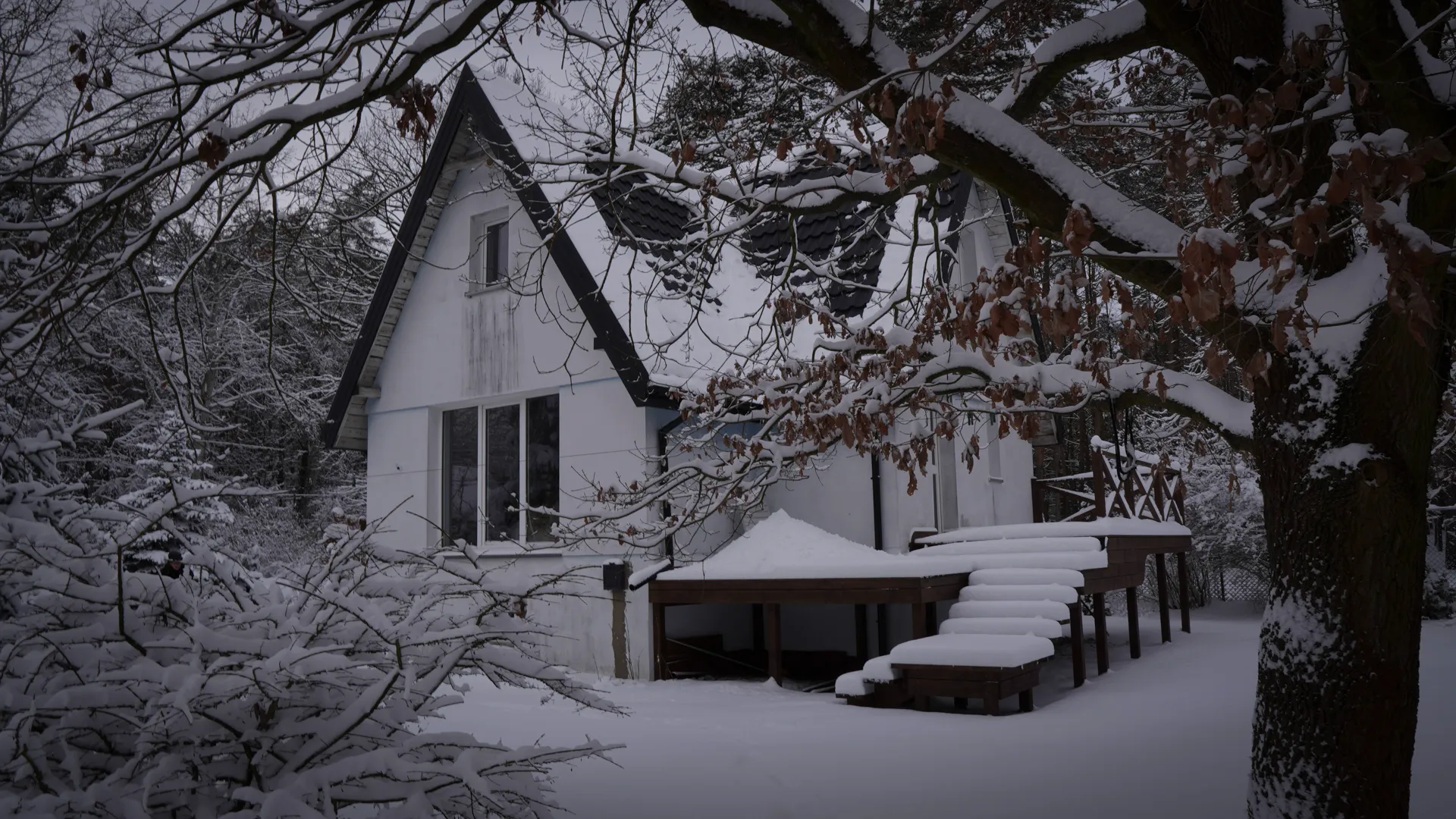
Property Exterior View
1.2 Standard Layout HTML Snippet
<!-- Modal backdrop with overlay -->
<div class="modal-backdrop">
  <!-- Image preview modal dialog -->
  <div
    class="image-preview-modal"
    role="dialog"
    aria-modal="true"
    aria-labelledby="image-modal-title">

    <!-- Header with title and close button -->
    <div class="image-preview-modal-header">
      <h2 class="image-preview-modal-title" id="image-modal-title">Image preview</h2>
      <button class="image-preview-modal-close" aria-label="Close dialog">
        <svg width="20" height="20" viewBox="0 0 20 20" fill="none" stroke="currentColor">
          <path stroke-linecap="round" stroke-linejoin="round" stroke-width="2" d="M6 18L18 6M6 6l12 12"/>
        </svg>
      </button>
    </div>

    <!-- Body with image and URL field -->
    <div class="image-preview-modal-body">
      <!-- Image container -->
      <div class="image-preview-container">
        <img src="/assets/images/hero-01.webp" alt="Property image preview" />
      </div>

      <!-- Image title -->
      <h3 class="image-title">Property Exterior View</h3>
      <div class="image-meta t-small">
        <span>1920 × 1080 px</span>
        <span>•</span>
        <span>image/webp</span>
      </div>

      <!-- URL field with copy button -->
      <div>
        <div class="image-url-field">
          <input
            type="text"
            class="image-url-input"
            value="https://example.com/property-images/hero-01.webp"
            readonly
            id="image-url-input"
          />
          <button class="btn btn--icon btn--sm" aria-label="Copy image URL">
            <svg width="16" height="16" viewBox="0 0 24 24" fill="none" stroke="currentColor">
              <rect x="9" y="9" width="13" height="13" rx="2" ry="2" stroke-width="2"/>
              <path d="M5 15H4a2 2 0 0 1-2-2V4a2 2 0 0 1 2-2h9a2 2 0 0 1 2 2v1" stroke-width="2"/>
            </svg>
          </button>
        </div>
        <div class="copy-feedback" id="copy-feedback">✓ Copied to clipboard</div>
      </div>
    </div>

    <!-- Footer actions -->
    <div class="image-preview-modal-actions">
      <button class="btn btn--secondary">Close</button>
    </div>
  </div>
</div>
1.3 Glassy Layout Preview
For use on dark overlays and app content containers (signed-in pages)
Image preview
Property Exterior View
1.4 Glassy Layout HTML Snippet
<!-- Modal backdrop with glassy overlay -->
<div class="modal-backdrop is-glassy">
  <!-- Image preview modal dialog with glassy styling -->
  <div
    class="image-preview-modal is-glassy"
    role="dialog"
    aria-modal="true"
    aria-labelledby="image-modal-title">

    <!-- Header with title and close button -->
    <div class="image-preview-modal-header">
      <h2 class="image-preview-modal-title" id="image-modal-title">Image preview</h2>
      <button class="image-preview-modal-close" aria-label="Close dialog">
        <svg width="20" height="20" viewBox="0 0 20 20" fill="none" stroke="currentColor">
          <path stroke-linecap="round" stroke-linejoin="round" stroke-width="2" d="M6 18L18 6M6 6l12 12"/>
        </svg>
      </button>
    </div>

    <!-- Body with image and URL field -->
    <div class="image-preview-modal-body">
      <!-- Image container -->
      <div class="image-preview-container">
        <img src="/assets/images/hero-01.webp" alt="Property image preview" />
      </div>

      <!-- Image title -->
      <h3 class="image-title">Property Exterior View</h3>
      <div class="image-meta t-small">
        <span>1920 × 1080 px</span>
        <span>•</span>
        <span>image/webp</span>
      </div>

      <!-- URL field with copy button (use glass icon button variant) -->
      <div>
        <div class="image-url-field">
          <input
            type="text"
            class="image-url-input"
            value="https://example.com/property-images/hero-01.webp"
            readonly
            id="image-url-input"
          />
          <button class="btn btn--icon-glass btn--sm" aria-label="Copy image URL">
            <svg width="16" height="16" viewBox="0 0 24 24" fill="none" stroke="currentColor">
              <rect x="9" y="9" width="13" height="13" rx="2" ry="2" stroke-width="2"/>
              <path d="M5 15H4a2 2 0 0 1-2-2V4a2 2 0 0 1 2-2h9a2 2 0 0 1 2 2v1" stroke-width="2"/>
            </svg>
          </button>
        </div>
        <div class="copy-feedback" id="copy-feedback">✓ Copied to clipboard</div>
      </div>
    </div>

    <!-- Footer actions: use glass button variant for glassy context -->
    <div class="image-preview-modal-actions">
      <button class="btn btn--secondary-glass">Close</button>
    </div>
  </div>
</div>
Usage Guidelines
✅ Do
- • Use for viewing gallery images, uploaded media, property photos
- • Provide clear image alt text for accessibility
- • Show actual image URL in the input field for sharing
-
• Use
btn--icon-glassfor copy button in glassy context - • Display copy feedback message after successful copy
- • Ensure proper focus management (focus enters modal, returns on close)
- • Support ESC key to close (expected by users)
- • Allow overlay click to dismiss modal
❌ Don't
- • Don't use for non-image content (use Confirm Modal instead)
- • Don't make URL field editable (should be readonly)
- • Don't hide copy feedback too quickly (min 2 seconds visible)
- • Don't overlay multiple modals (one at a time)
- • Don't hardcode image dimensions (let CSS handle responsiveness)
- • Don't apply inline styles; use DS classes only
- • Don't show broken image state without fallback/error handling
♿ Accessibility Requirements
-
role="dialog"on modal container -
aria-modal="true"to indicate modal behavior -
aria-labelledby="[title-id]"references the title element -
aria-labelon close button and copy button - Image alt text: Descriptive alt attribute for screen readers
- Focus trap: Keyboard focus should stay within the modal until closed
- Focus restoration: When modal closes, focus returns to trigger element
- ESC key: Pressing ESC should close the modal
- Keyboard navigation: Tab through controls; Enter/Space to activate buttons
🎨 Standard vs. Glassy Rules
-
Standard context: Use
.btn--iconand.btn--secondary -
Glassy context: Use
.btn--icon-glassand.btn--secondary-glass -
Modal styling: Add
.is-glassyclass to modal in glassy context -
Backdrop styling: Add
.is-glassyclass to backdrop in glassy context - Image container: Background adapts automatically via context modifier classes
Implementation Notes
CSS Location
Modal CSS is defined inline in this documentation page for preview
purposes. In production, move
.image-preview-modal,
.image-preview-modal-*, and
.modal-backdrop
styles to a dedicated CSS file if reusing across multiple pages.
JavaScript Requirements
-
• Show/hide modal: Add/remove
.is-openclass to backdrop - • Close on backdrop click: Dismiss if user clicks outside modal
- • Close on ESC key: Essential for accessibility
-
• Copy URL: Use
navigator.clipboard.writeText()with fallback - • Focus management: Move focus into modal on open, restore on close